Monday, April 8, 2013

Security Token Service Access Denied

Error message from ULS:

An exception occurred when trying to issue security token: The server was unable to process the request due to an internal error.  For more information about the error, either turn on IncludeExceptionDetailInFaults (either from ServiceBehaviorAttribute or from the configuration behavior) on the server in order to send the exception information back to the client, or turn on tracing as per the Microsoft .NET Framework 3.0 SDK documentation and inspect the server trace logs..
SPSecurityTokenService.Issue() failed: System.Runtime.InteropServices.COMException (0x80070005): Access is denied. at System.DirectoryServices.DirectoryEntry.Bind(Boolean throwIfFail) at System.DirectoryServices.DirectoryEntry.Exists(String path) at Microsoft.SharePoint.Administration.SPMetabaseObject.get_Exists() at Microsoft.SharePoint.Administration.Claims.SPSecurityTokenServiceManager.<>c__DisplayClass8.b__6() at Microsoft.SharePoint.SPSecurity.<>c__DisplayClass4.b__2() at Microsoft.SharePoint.Utilities.SecurityContext.RunAsProcess(CodeToRunElevated secureCode) at Microsoft.SharePoint.SPSecurity.RunWithElevatedPrivileges(WaitCallback secureCode, Object param) at Microsoft.SharePoint.SPSecurity.RunWithElevatedPrivileges(CodeToRunElevated secureCode) at Microsoft.SharePoint.Administration.Claims.SPSecurityTokenServiceManager.EnsureSharePointLogonRequestClaims(Claim logonIdentityClaim, SPClaim& sharePointIdentityClaim) at Microsoft.SharePoint.IdentityModel.SPSecurityTokenService.EnsureSharePointClaims(SPRequestInfo info, IClaimsIdentity outputIdentity) at Microsoft.SharePoint.IdentityModel.SPSecurityTokenService.GetOutputClaimsIdentity(IClaimsPrincipal principal, RequestSecurityToken request, Scope scope) at Microsoft.IdentityModel.SecurityTokenService.SecurityTokenService.Issue(IClaimsPrincipal principal, RequestSecurityToken request)     at Microsoft.SharePoint.IdentityModel.SPSecurityTokenService.Issue(IClaimsPrincipal principal, RequestSecurityToken request)


Resolution:

Reprovision the Secure Store Service.  In this specific situation simply adding the proper permissions to the database for the Secure Store Service account fixed the issue.  If you are not a DBA you could reprovision the Secure Store Service through Powershell by using the following commands and this would effectively do the same thing.

PS C:\> $mysts = Get-SPServiceApplication | ?{$_ -match "Security Token Service"}
PS C:\> $mysts

 
DisplayName TypeName Id
----------- -------- --
Security Token Se... Security Token Se...

 PS C:\> $mysts.StatusOnline
PS C:\> $mysts.Provision()

Wednesday, April 3, 2013

SharePoint 2010 Search Not Working

If all else fails, try removing all accounts from the web application User Policy and add them back.

Publishing Pages Library Causing Errors

I recently came across an issue where a publishing pages library "Pages" seemed to be causing errors.  I saw Correlation ID errors from the Site Actions menu, Edit Page and Manage Content and Structure menu options.  I also saw an error from the parent site collection's Manage Content and Structure tree view navigation when clicking on the subsite containing the offending Pages library.  The error I saw in the ULS: Pages list cache permission check failed.  Pages list with this URL is missing: Pages.  As it turns out, this site was in a SharePoint 2010 environment but still in 2007 mode.

To resolve the issue, check the offending document library setings, then got to advanced settings, and scroll down to the bottom, make sure  "Launch forms in dialog" is set to No.  Mine was initially set to Yes and when I changed the setting to No the problem was resolved. 

Monday, December 24, 2012

Recipe to Hide Features Across the SharePoint Farm

I was asked to make a tasty dish to hide features from all of the site collection administrators so they could not attempt to activate any of these in the recently upgraded SharePoint 2010 farm.  To do this I just needed to use PowerShell to set the hidden attribute to ”TRUE” of the feature element in each of the feature.xml files of the feature that I wanted hidden.  In the future I could activate the feature for a specific site using PowerShell.  (http://technet.microsoft.com/en-us/library/ff607803(v=office.14).aspx

Each feature has its own system folder in the 14 hive.  In my case, located here: \\machinename\c$\Program Files\Common Files\Microsoft Shared\Web Server Extensions\14\TEMPLATE\FEATURES\featurefolder\.  Notice I used a UNC path and referenced the C: shared drive (c$).  This will come in handy later.  Since we have multiple web front-end and application servers I created a .csv file listing these UNC paths for each machine.  Also, since I had more than one feature to update I created a .csv file listing the feature folders.  Below is a sample of my lists:
 
ServerPath.csv
ServerPath
\\MACHINENAME1\c$\Program Files\Common Files\Microsoft Shared\Web Server Extensions\14\TEMPLATE\FEATURES\
\\MACHINENAME2\c$\Program Files\Common Files\Microsoft Shared\Web Server Extensions\14\TEMPLATE\FEATURES\

 
Features.csv
FeaturePath
CallCenterCustomer\
CallCenterServiceRequestsList\

 
Here is the recipe:
Import the list of servers and paths csv file
Import the list of features csv file

Loop through each server
     Loop through each feature
          Locate the specific feature.xml file
          Load the elements of the XML into PowerShell
          Set the attribute hidden=”true”
          Save the feature.xml
     Go to next feature
IIS reset /noforce
Go to next server

Done!
 
The Garnish
I have two lists - 1) an Excel file of server paths and 2) an Excel file of feature folders.  I need PowerShell to read each row of these files.  PowerShell can’t easily read Excel files…but PowerShell CAN easily read .csv files and I can easily save my Excel files as .csv files.  For PowerShell to read the data in these .csv files I need to import them.  (
http://technet.microsoft.com/en-us/library/ee176874.aspx)

# List of features to be removed (file folder names)
$importedFeaturesCSV = Import-Csv C:\Features.csv

 
# Server/file path
$importedPathsCSV = Import-Csv C:\ServerPaths.csv


The Potatoes
I need to do a nested ForEach loop.  The outer loop will loop through each server in the farm from the ServerPaths.csv file.  The inner loop will loop through each feature in the Features.csv file.  (
http://blogs.technet.com/b/heyscriptingguy/archive/2008/10/13/how-can-i-read-a-csv-file.aspx)
 
ForEach Server
# Read each server path
Foreach ($line in $importedPathsCSV)


ForEach Feature
# Read each feature
Foreach ($line in $importedFeaturesCSV)


The Meat
1. Specify the XML File
I know the file system path and folder names for all of the features I need to hide.  I can do this dynamically because I have a .csv file with all of my feature folder names.  Here, I am assigning the complete UNC file path to the feature.xml file to a variable $thisXMLfile.


# Specify the XML file
$thisXMLfile = $myServerPath + $myXMLpath + "feature.xml"


2. Get-Content (PowerShell command)
To be able to modify the XML file I needed to get the content of the file to be able to modify it so I used the Get-Content PowerShell cmdlet. (
http://blogs.technet.com/b/heyscriptingguy/archive/2012/09/13/use-powershell-to-simplify-access-to-xml-data.aspx)

# Load the XML file
$featureXMLfile = [xml] (get-content $thisXMLfile)


3. SetAttribute (XML Method)
I need to add or change an attribute of an XML element.  If you are new to xml, allow me to save you some time here.  The SetAttribute method adds a new attribute or changes the value of an existing attribute. (
http://msdn.microsoft.com/en-us/library/system.xml.xmlelement.setattribute.aspx)

# Set the Attribute
$featureXMLfile.Feature.SetAttribute("Hidden", "TRUE")


4. Save the File
I need to save the changes back to the XML file.


# Save the XML file with the change
$featureXMLfile.Save($thisXMLfile)


The Completed Dish
I ran the script using the following command just to have output of the results.
.\UpdateXML.ps1 > Results.txt

1  # Import .CSV's
2  # List of features to be removed (file folder names)
3  $importedFeaturesCSV = Import-Csv C:\Features.csv

4  # Server/file path
5  $importedPathsCSV = Import-Csv C:\ServerPaths.csv
6  # Can use filters
7  #$importedFeaturesCSV = Import-Csv C:\Features.csv | Where-Object {$_.FeaturePath -eq "FeatureFolderName\"}

8  # Set counts
9 $processedCount = 0
10 $totalCount = 0
11 $servers = 0

12 # Read each server path
13 Foreach ($line in $importedPathsCSV)
14 {   
15    if ($totalCount -ne 0)
16    {
17        echo "$processedCount of $totalCount features updated for $servers servers."
18    }
19 
20    # Server/file path
21    $myServerPath = $line.ServerPath
22    echo "Current server: $myServerPath"
23    $servers++
24   
25    # Read each feature
26    Foreach ($line in $importedFeaturesCSV)
27    {
28        $totalCount++
29        Try
30        {
31            $myXMLpath = $line.FeaturePath

32       
33            # Specify the XML file
34            $thisXMLfile = $myServerPath + $myXMLpath + "feature.xml"

35            # Load the XML file
36            $featureXMLfile = [xml] (get-content $thisXMLfile)

37            # Set the Attribute
38            $featureXMLfile.Feature.SetAttribute("Hidden", "TRUE")

39            # Save the XML file with the change
40            $featureXMLfile.Save($thisXMLfile)

41            # Display attributes of the XML element
42            #echo $featureXMLfile.Feature
43            $processedCount++

44        }
45       
46        Catch [system.exception]
47        {
48            echo "Problem with $thisXMLfile"
49        }
50    }

51 # IIS reset
52 iisreset /noforce

53 }
54 echo "Done! $processedCount of $totalCount features updated for $servers servers."

Tuesday, March 3, 2009

The data source control failed to execute the update command

I created a SharePoint list with one of the fields being a lookup to a field in another SharePoint list. The user wanted this DDL to be filtered. No problem. I can do that. So I created my filtered lookup (good instruction but not supported well). When I tried to update an item or insert a new item using the filtered lookup I received the error: The data source control failed to execute the update command. I found that the Microsoft Office Online website actually gave some instruction about this error:

From Insert a Data View as a Form at Microsoft Office Online:
"However, if your data source is an SQL data source such as an SQL database or a SharePoint list or library, the field types may be specified in the data source itself. In such a case, if you use the form to enter text in a field that requires numbers and then click Save, an error message appears in the browser explaining that the data source control failed to execute the update command. This means that you are entering values in the form that the data source field cannot accept. If you receive such an error message, click Back in the browser, and then either click Cancel on the form to discard your changes, or enter values in the form fields that the data source can accept."

Basically, I had to go back into my SharePoint list and delete that lookup column and re-create the column as a single line text type column. This did solve the problem. Unfortunately, this column, in its current state, only saves the text of the option value in the filtered lookup. Be warned: this column no longer saves the link to view the information of the lookup item. This was no great loss for my users and this solution allowed me to store the necessary information I needed in that column. By the way, no changes were needed to the filtered lookup on the NewForm.aspx or EditForm.aspx pages after this change to the SharePoint list.

Tuesday, December 23, 2008

SPD Workflow: Display Full Name Instead of Domain\username

I recently setup a SharePoint list and used the Person or Group list column type. I wanted to use proper names in emails sent by a workflow associated with this particular list. The only value I could get out of the field was domain\username. Unfortunately, using WSS 3.0, I have not found an OOTB way to grab the proper name of the individual users stored in this column type. So I created my own way to parse this data utilizing some other tips and tricks I’ve learned along the way. The basic premise is that we will be parsing the domain\user.name text string to get First Name and Last Name.


  1. Create a text column that will mirror the Person or Group column: hiddenColumn. We need this because we will be parsing the text string in this field. SharePoint will not allow you to reference a Person or Group column in a calculated field (see Step 2). I noticed that when I created my hidden columns if I unchecked the “Add to all content types” option then this column would not appear in the New Item or Edit Item forms.


  2. Create 3 calculated columns (see formulas below): First Name, Last Name, Full Name. I suppose you don’t have to create the Full Name calculated column since you can concatenate the other 2 columns whenever you need a full name but I chose to do so anyway. The formulas for the calculated columns: I learned that a SharePoint calculated column can contain almost every formula and/or function that exists in MS Excel. With that knowledge I was armed and dangerous and created the formulas below.
    Note: ## = the number of letters in your domain name including the "\"
    $$ = add 1 to value of ##, used as a starting poistion for string manipulation

    First Name =PROPER(LEFT(MID([hiddenColumn],$$,LEN([hiddenColumn])-##),FIND(".",MID([hiddenColumn],$$,LEN([hiddenColumn])-##),1)-1))

    Last Name =PROPER(RIGHT(MID([hiddenColumn],$$,LEN([hiddenColumn])-##),LEN([hiddenColumn])-FIND(".",[hiddenColumn],1)))

    Full Name =PROPER(CONCATENATE(LEFT(MID([hiddenColumn],$$,LEN([hiddenColumn])-##),FIND(".",MID([hiddenColumn],$$,LEN([hiddenColumn])-##),1)-1)," ",RIGHT(MID([hiddenColumn],$$,LEN([hiddenColumn])-##),LEN([hiddenColumn])-FIND(".",[hiddenColumn],1))))


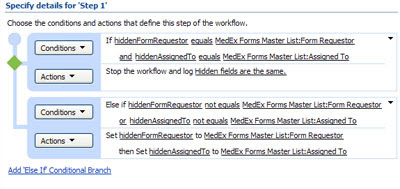
  3. Create a workflow to store a “working” value in the hidden column that mirrors the Person or Group column. This is needed so we can manipulate or parse the text string value that is stored in the Person or Group column within the calculated columns. SharePoint will not allow you to perform calculations on a Person or Group co;umn type. This is a great video that explains exactly how to do this: Run a workflow when a specific field changes


This is a screenshot of my workflow